
Home / AI
Say it on your phone. Quote, invoice and payment done.
Connect Loggerise to Claude or ChatGPT with one address. Then do by conversation what you do on screen; before anything is saved, you see a summary and approve it.
Prepare a quote for Atlas Architects: 20 hours of office setup. Send them the link.
readfinans_cari_ara
writefinans_teklif_olustur
- Account
- Atlas Architects
- Line
- Office setup · 20 hours
- Result
- Draft quote
Approved, send it.
writefinans_teklif_gonder
Quote link sent to Atlas Architects.
Wednesday 14:40Atlas accepted. Turn it into an invoice and send it as an e-invoice.
writefinans_teklif_faturaya_cevir
writefinans_fatura_onayla
- Action
- e-invoice sent through your provider
- Approval
- By code
writefinans_fatura_gonder_efatura
Atlas paid ₺24,000 by bank transfer. Apply it to the invoice and send a receipt.
writefinans_tahsilat_kaydet
writefinans_makbuz_gonder
Payment applied, invoice closed. Receipt sent to Atlas Architects.

- It knows who you areYou sign in on a Loggerise window and pick the company to work in.
- Reads freely, writes with approvalA write tool first returns a summary and an approval code, saving nothing.
- One address, every productTools arrive with a product prefix:
finans_…,uluslararasi_…,filo_… - Leaves a trailEvery call is logged with user, tool and time.
The photo is an AI-generated setting; the chat and tool names come from the product.
What is the Loggerise MCP connection?
The Loggerise MCP connection is a single gateway (app.loggerise.com/mcp) that links Loggerise products to AI assistants such as Claude, ChatGPT and Gemini CLI. Every on-screen action is exposed as a tool. The assistant works with the user's own permissions and asks for an approval code before changing any record. As of November 2026, the eight live products register more than 900 tools.
Connected in two minutes.
Same address in Claude and ChatGPT. No separate address per product.
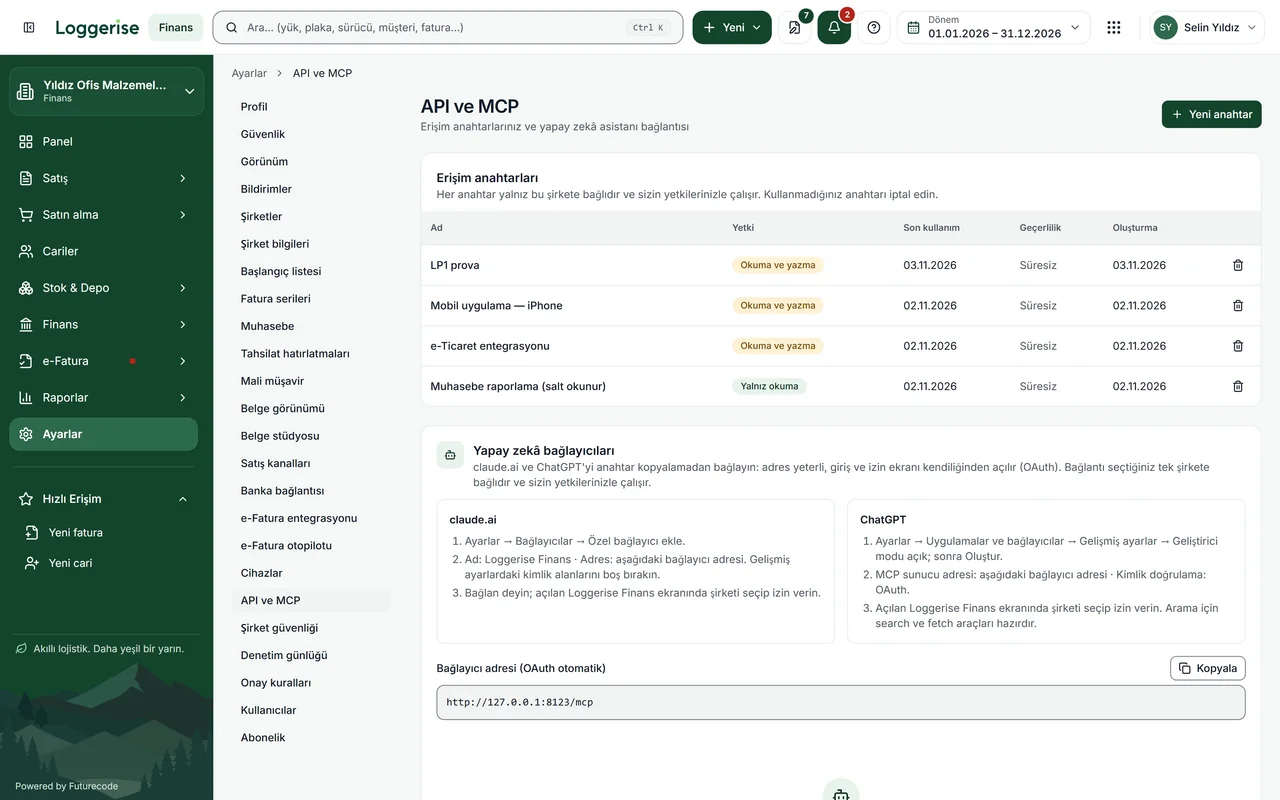
https://app.loggerise.com/mcpClaude
claude.ai › Settings › Connectors › "Add custom connector". Name: Loggerise, URL: the address above.
ChatGPT
Settings › Apps & Connectors › Advanced settings: turn on developer mode, then "Create" with the same address. Authentication: OAuth.
Sign in, pick a company
Sign in on the Loggerise window, choose the company, press "Allow".
Ask
"Where is the Stuttgart load?", "Which invoices are overdue this month?" Anything that changes a record shows a summary first.
Menu names vary between assistant versions; the address and the OAuth step stay the same.
What to say, product by product.
These are the products' real tool names. Every on-screen action has one.
 International
What stage is load IHR-2026-00007 at?
uluslararasi_yuk_getir readInternationalRank last month's trips by profitability.
uluslararasi_sefer_karlilik_getir read Domestic
Which transport orders have no vehicle yet?
yurtici_bekleyen_emirler read Fleet
Which vehicles have inspection or insurance expiring in the next 30 days?
filo_sureleri_gelenler readFleetIs the fuel consumption of 34 ABC 123 over the last three months normal?
filo_yakit_tuketim read Finance · pre-accounting
Send a reminder to customers more than 30 days overdue.
finans_hatirlatma_gonder write, asks for approval CRM
Summarise this month's sales board: open deals and stages.
crm_satis_panosu read HR
Who is on leave next week?
ik_izin_takvimi read Assets
Assign a laptop to Ayşe Yılmaz.
zimmet_zimmet_ver write, asks for approvalAs of November 2026, more than 900 tools across eight products, plus 56 in the hub (count of registered tools in product code).
You stay in control.
AI doesn't replace your team; it speeds up the work. You set the rules.
Only what you can do
The assistant can't see or do more than the user's role allows.
Approval code
Every change returns a summary and an approval code first; without approval nothing is written.
Call log
Every call is recorded with user, tool and time.
Disconnect in one click
Settings › AI connection › "Disconnect" on the row.
Order in large catalogues
For assistants with a tool limit, the connection switches to catalogue mode: the assistant finds the tool first, then runs it.
Frequently asked questions
What is MCP?
MCP (Model Context Protocol) is an open protocol that lets AI assistants connect to software securely. In Loggerise, on-screen actions are exposed as MCP tools. When an assistant calls a tool, it runs with the user's own permissions, and tools that change records first return a summary and an approval code. Loggerise has one MCP address: https://app.loggerise.com/mcp.
Which AI assistants work with Loggerise?
As of November 2026, Loggerise connects to Claude, ChatGPT and Codex, and Gemini CLI. The connection uses one address (app.loggerise.com/mcp) and OAuth: the user signs in on a Loggerise window and picks the company. For assistants with a tool limit, the connection switches to catalogue mode, where the assistant first searches for the right tool and then runs it.
How do I connect Loggerise to Claude?
In claude.ai, open Settings › Connectors › "Add custom connector", enter Loggerise as the name and https://app.loggerise.com/mcp as the URL. Sign in on the Loggerise window that opens, choose the company and press "Allow". The connection takes about two minutes; a good first prompt is "Which invoices are overdue this month?"
Can the AI assistant change my records without approval?
No. In Loggerise, every tool that changes a record first returns a summary and an approval code without saving anything. The record is written only by a second call after the user approves. The assistant also cannot see or do more than the user's role allows, and every call is logged with user, tool and time.
How many AI tools does Loggerise have?
As of November 2026, Loggerise's eight live products (International, Domestic, Fleet, Finance · pre-accounting, CRM, HR, Assets, WMS) register more than 900 MCP tools in total, and the hub adds 56. The principle is that every on-screen action has a matching tool. All tools are served from one address with a product prefix, such as finans_…, uluslararasi_… or filo_….
I run several companies. Which one does the assistant work in?
The assistant works in the company chosen when the connection was set up. Saying "switch company" during the conversation is enough; switching is handled once in the Loggerise hub and every product tool follows the selected company. Each company's data is kept separately, and the assistant sees only what the user is allowed to see in that company.
Let's set up the connection together.
In the call we add the connector to your account and try the first prompts with you.